How to Change Your Google Calendar Background
Google Calendar has no setting for a background picture. This guide shows how to add your own picture with CalHue, a free extension for Chrome.
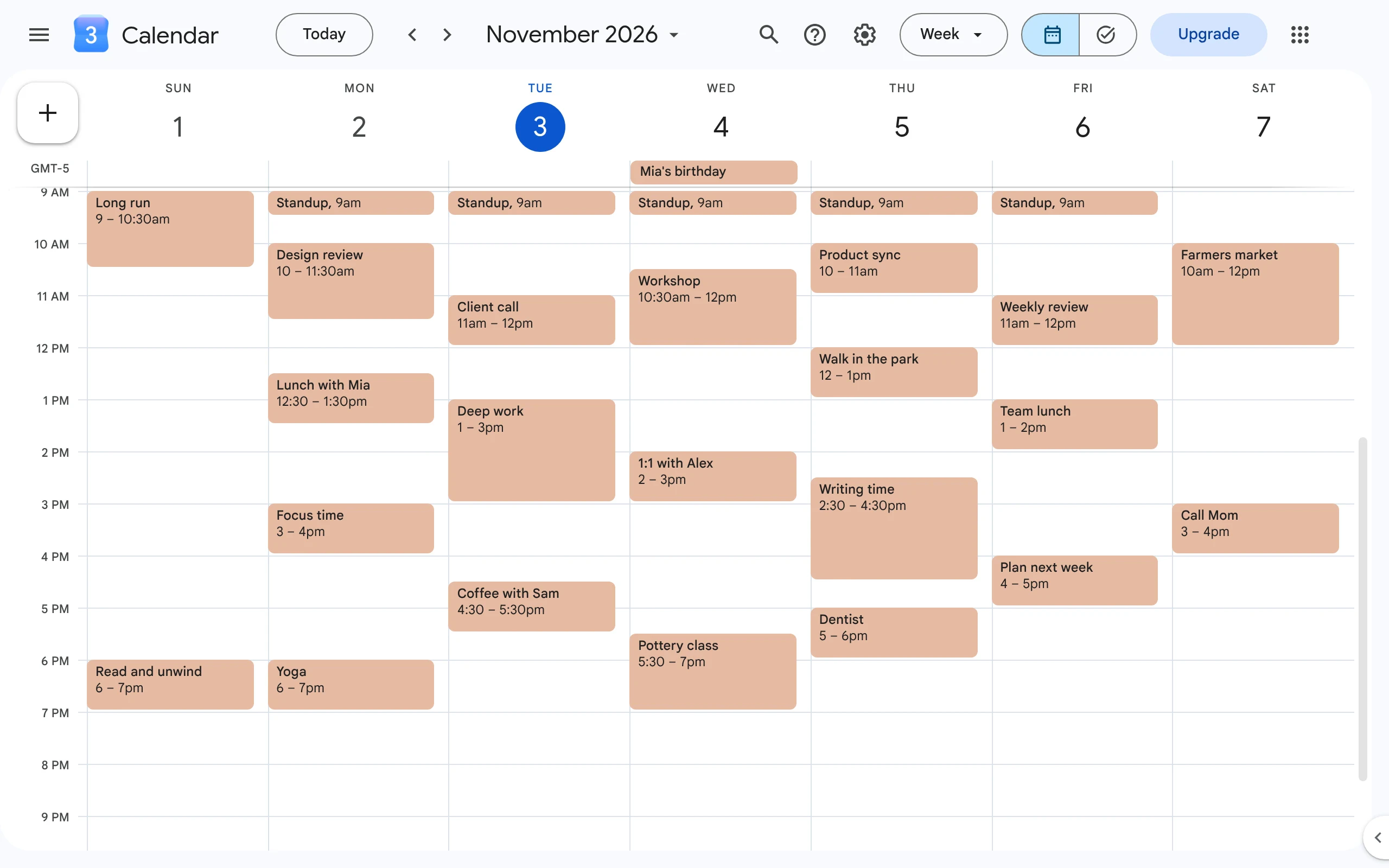
Without CalHue, Google Calendar looks like this: white, with gray lines, and every event in its calendar’s color.
1. Add CalHue to Chrome
- Open CalHue in the Chrome Web Store and click Add to Chrome.
- Open Google Calendar at calendar.google.com.
- Click the CalHue icon at the top right of Chrome. Can’t see it? Click the puzzle piece icon, then the pin next to CalHue.
You don’t need an account.
2. Pick a picture
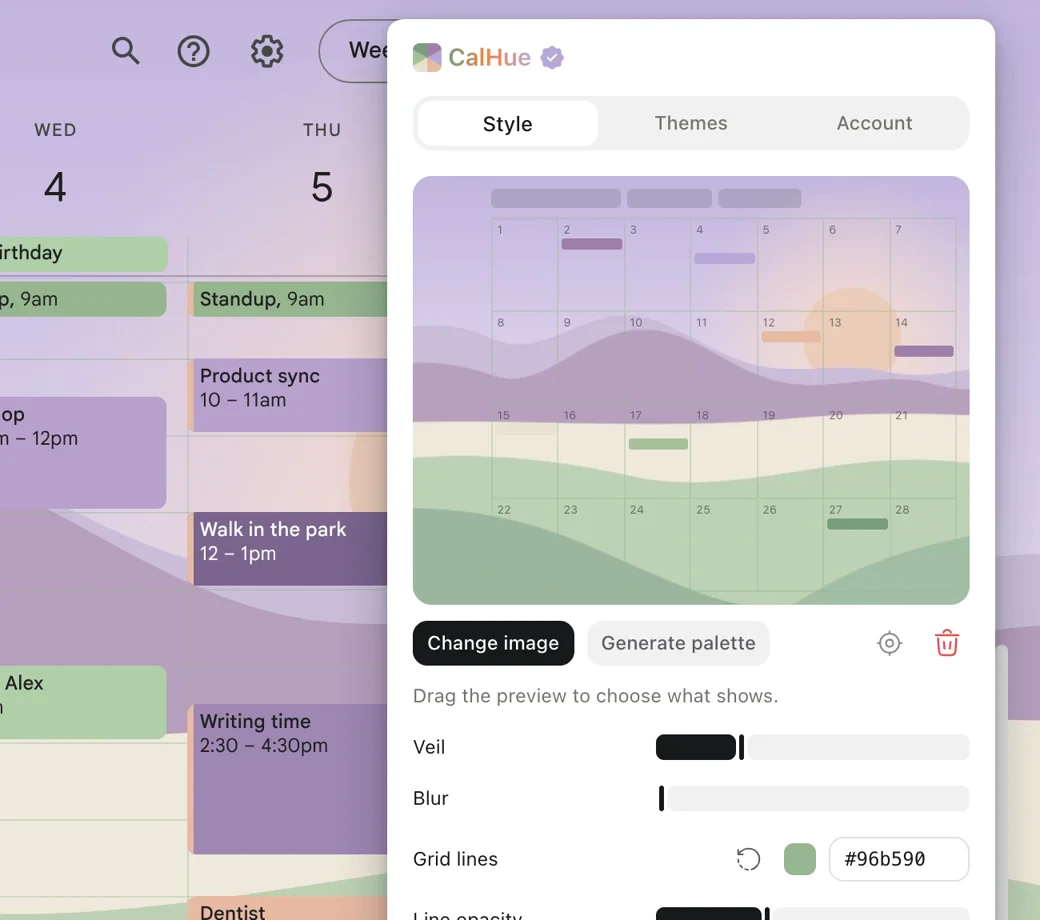
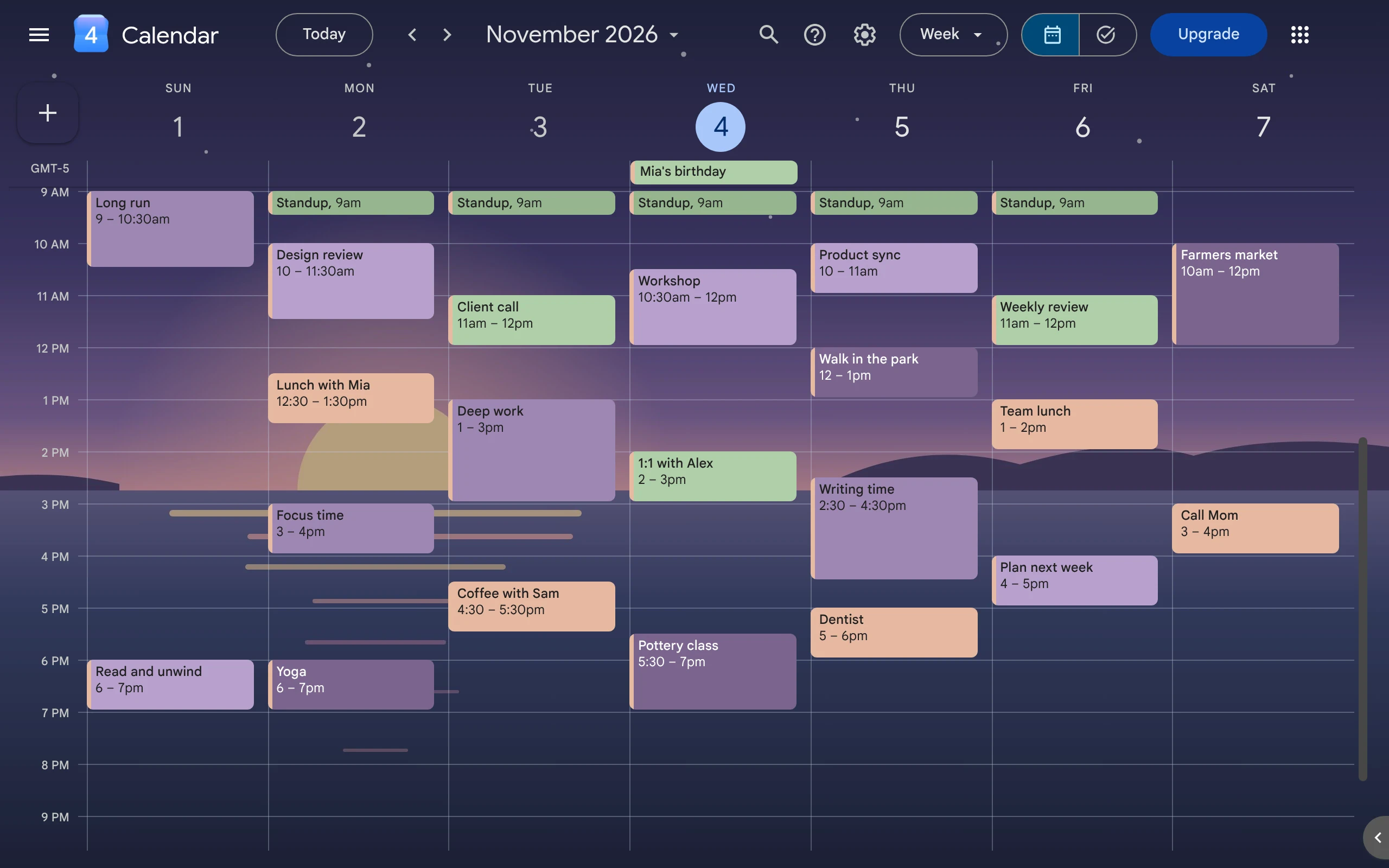
In CalHue, open Style and click Choose image. You can also drag a picture onto the preview, or paste one. Your picture now sits behind your calendar.
- Use a JPG, PNG or WebP file, up to 50 MB.
- Your picture stays on your computer. CalHue never uploads it.
- To use another picture, click Change image. To go back to Google’s look, click the trash can.
3. Move the picture
Drag the preview to choose which part of the picture shows. You can also click the preview and use the arrow keys. The round target button puts the picture back in the middle.
4. Make events easy to read
A busy picture can make events hard to read. Two sliders help:
- Veil lays a see-through layer over the picture. It is white in Google’s light theme and dark in the dark theme. Turn it up to make the picture fainter.
- Blur makes the picture soft, so it doesn’t pull your eye away from your events.
5. Change the grid lines
Grid lines are the thin lines between days and hours. Under Grid lines, pick a color that goes with your picture, and choose how strong the lines are. The round arrow button brings back Google’s gray lines.
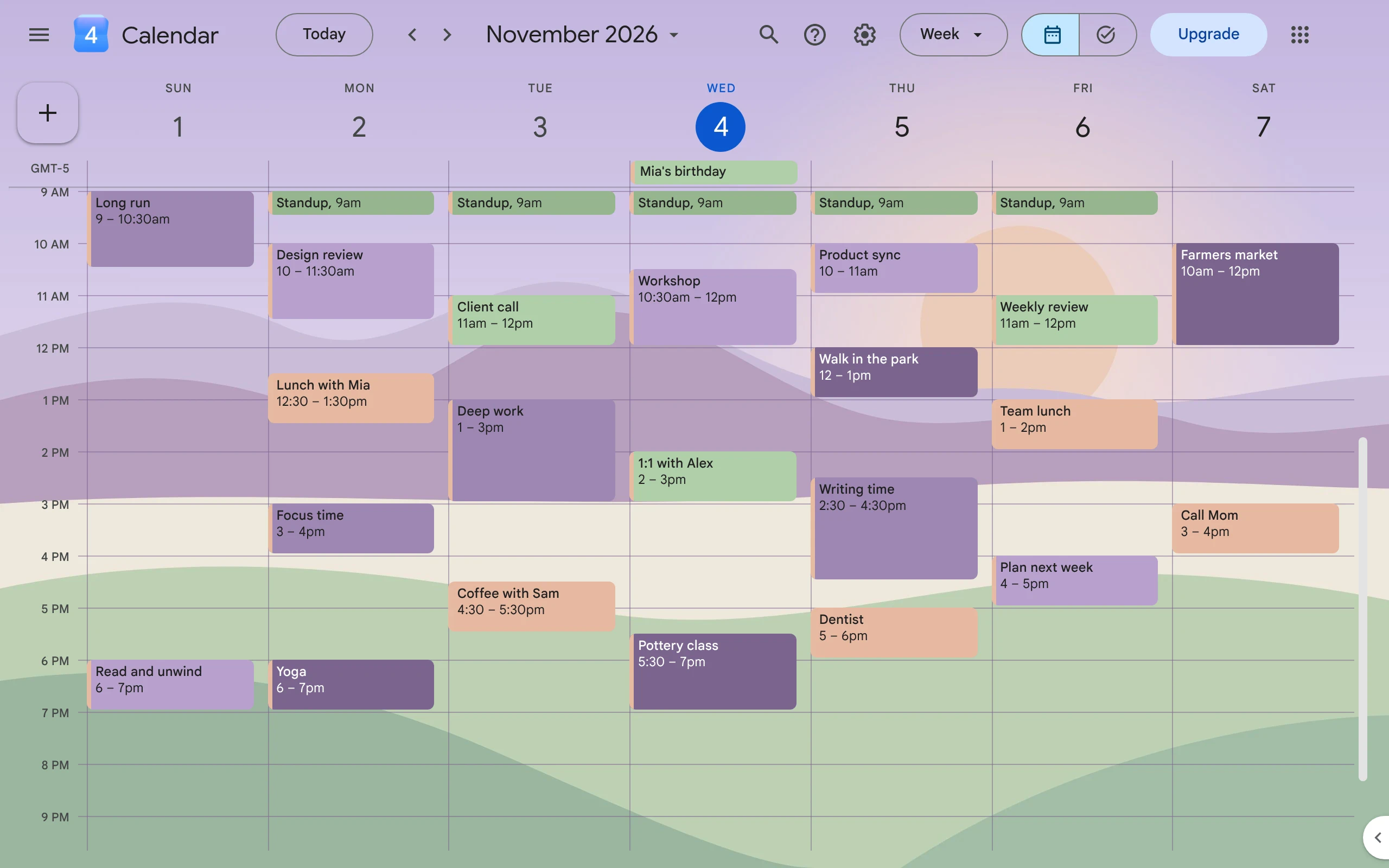
6. Match your event colors
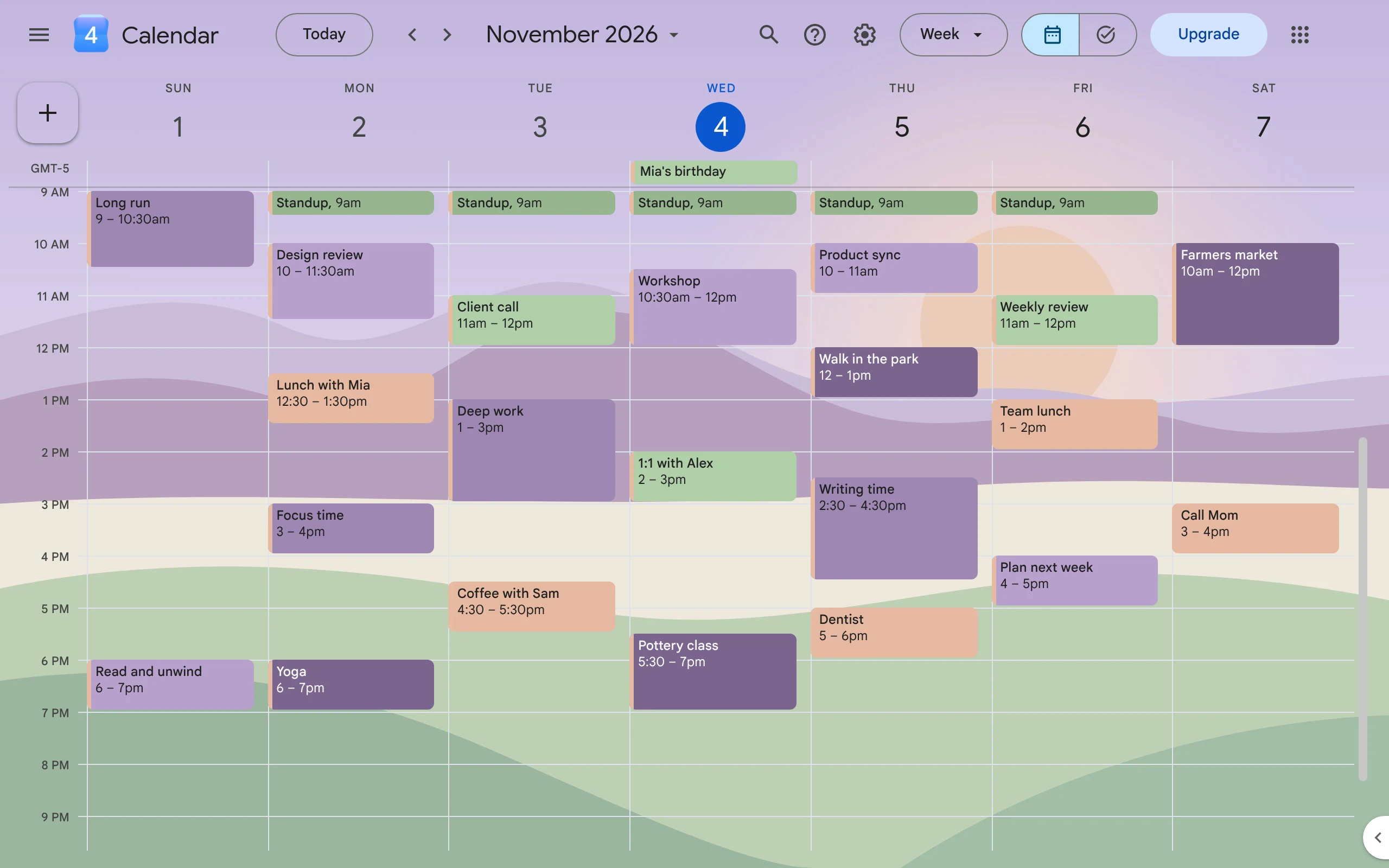
On the Style page, click Generate palette. CalHue makes six event colors that go with your picture. Seeing them is free. With CalHue Pro, you can save them and add them to Google Calendar. Or use one of six ready-made palettes.
Tips for picking a picture
- Pick a wide picture. Your calendar is wider than it is tall.
- Pick a big picture, at least as wide as your screen, so it stays sharp.
- Calm pictures work best, like sky, sea or a plain wall. For a busy picture, turn up the veil or the blur.
- Match the picture with a few soft event colors. See how to make Google Calendar aesthetic.
Good to know
- Old guides say to turn on a background picture in Google Calendar Labs. Labs is gone now, and that option went with it. Google Calendar has no background picture setting of its own.
- Only you see the background. It shows in the Chrome where you added CalHue, and not in Google Calendar on your phone.
- It shows in the day, week, month, year, schedule and custom views. Settings, Tasks, Trash and the full event editor keep Google’s look.
- With CalHue Pro, you can save a picture and its settings as a theme, and switch themes with one click.
Keep reading
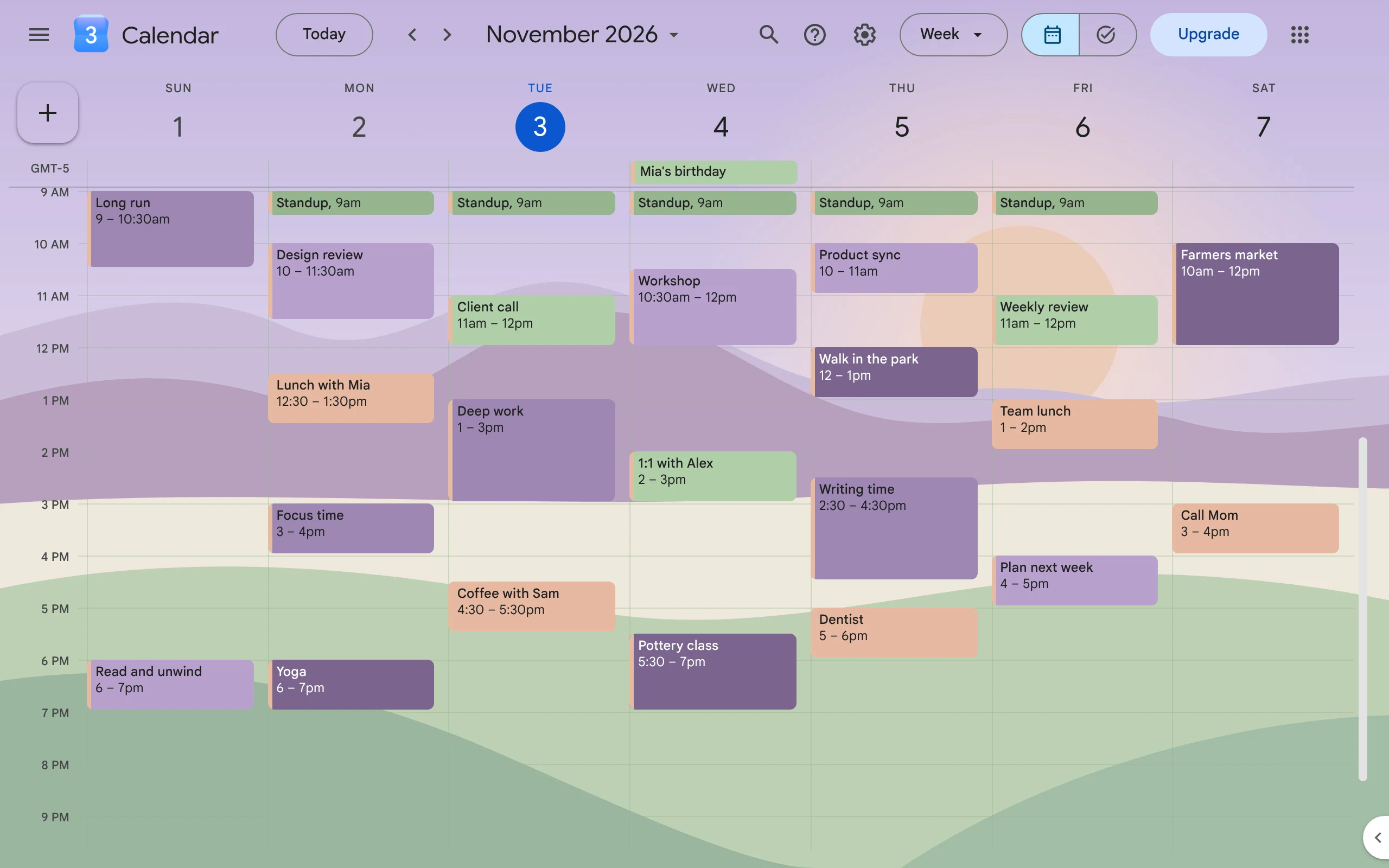
How to Make Google Calendar Aesthetic
Pick a few soft colors that go together, give each one a job, and add a background picture. Google does the colors; a free Chrome extension adds the picture.
Does Google Calendar Have a Dark Mode?
Yes. Google Calendar on the web has a dark mode. Turn it on in Appearance, then use soft, light event colors so your events stay easy to read.
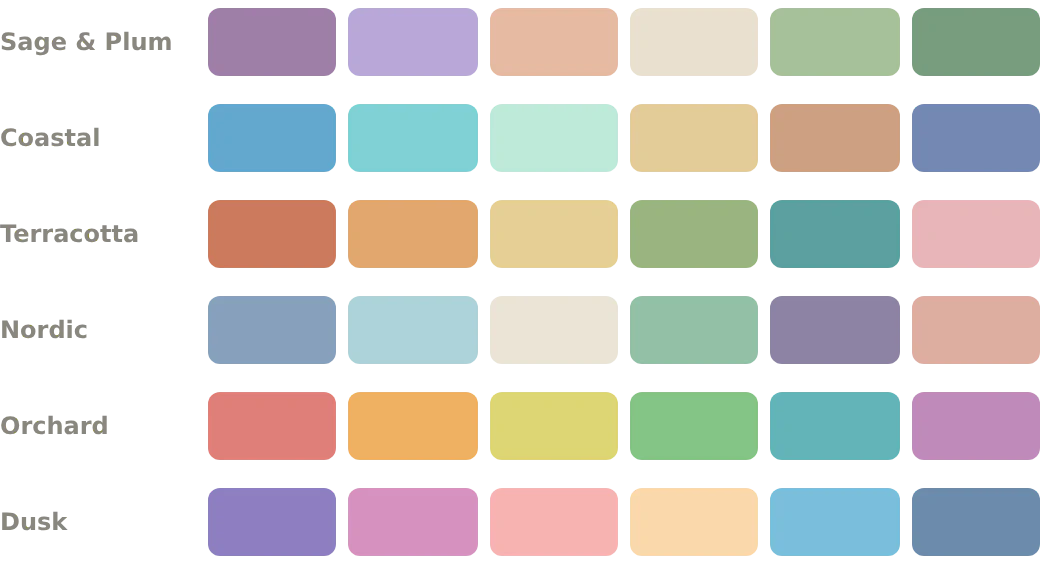
Google Calendar Color Palettes with Hex Codes
Six sets of colors for Google Calendar, with hex codes you can copy. Each color keeps event names easy to read, in light and dark themes.