How to Make Google Calendar Aesthetic
Pick a few soft colors that go together, give each one a job, and add a background picture. Google does the colors; a free Chrome extension adds the picture.
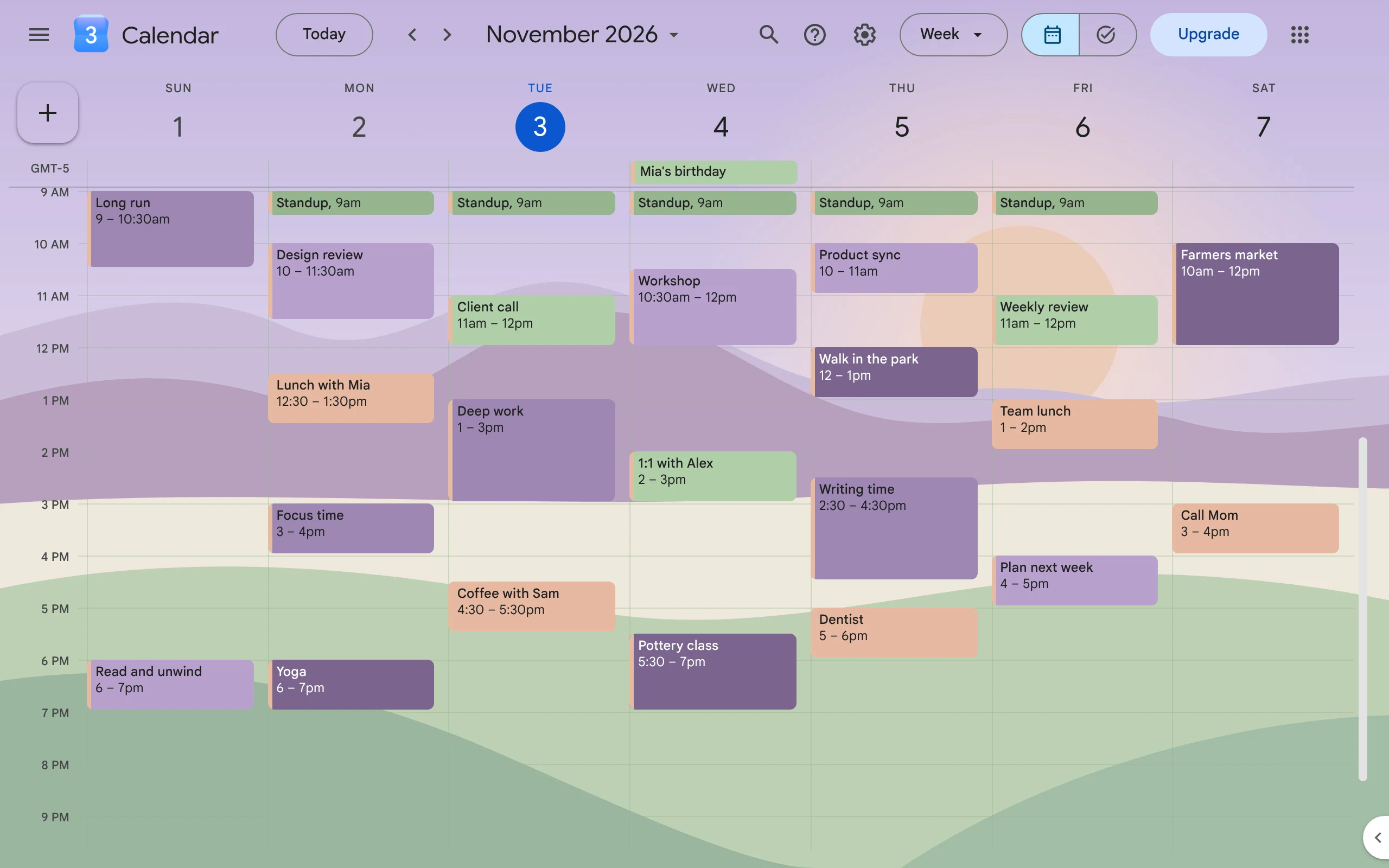
To make Google Calendar aesthetic, use 4 to 6 soft colors that go together. Give each color one job, like “Work” or “Gym”. Then add a background picture that fits the colors. Google Calendar can do the colors by itself. For the picture, you need an extension, such as CalHue.
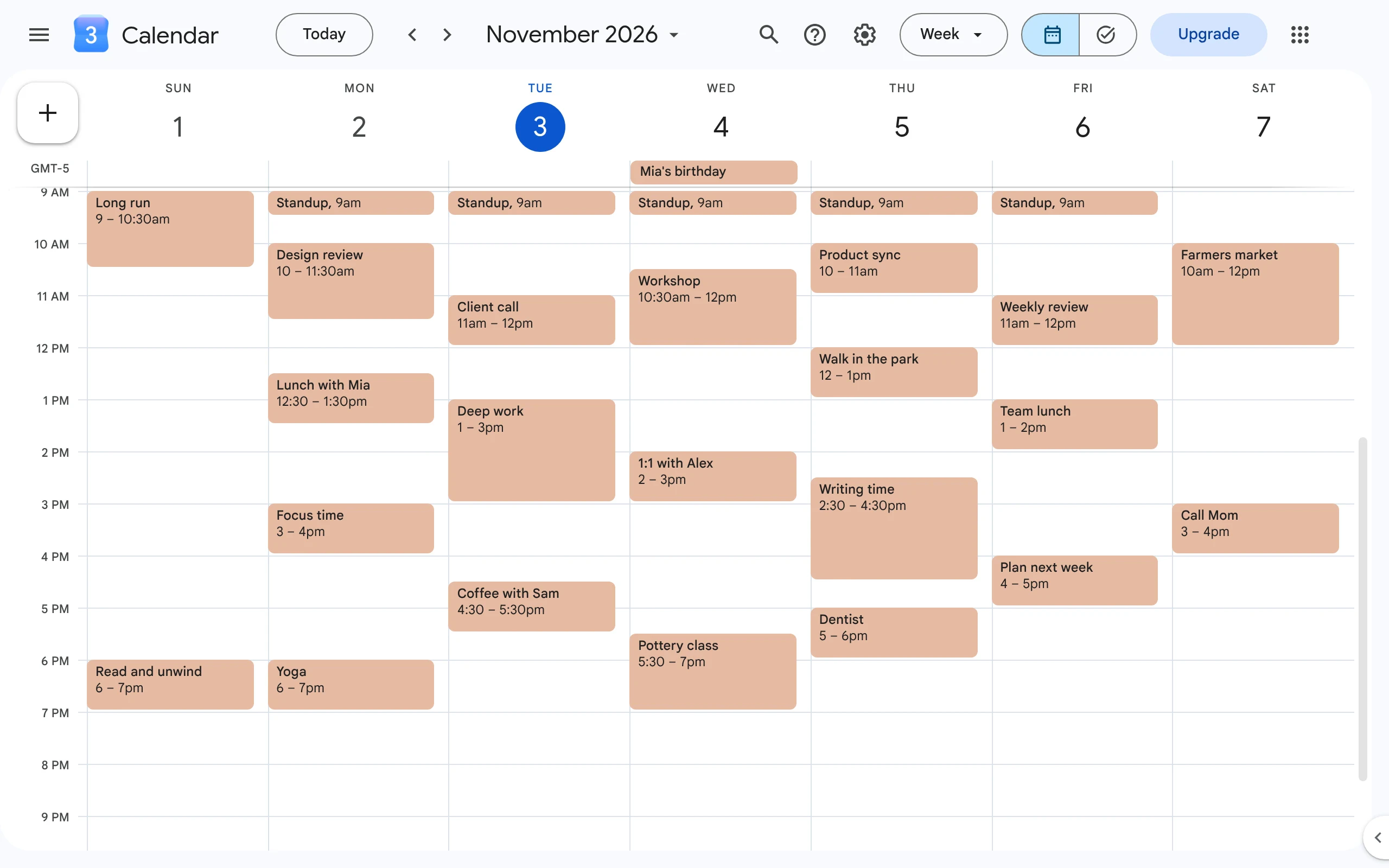
This is what Google Calendar looks like before: white, gray lines, and every event in one color.
1. Pick a mood
Think of one place or feeling. A beach. A forest. A sunset. A cozy café. Every color and picture you pick should fit it.
2. Pick 4 to 6 colors
Fewer colors look calm. Too many look messy.
- Pick soft, light colors. Event names are easy to read on them.
- Pick colors that are easy to tell apart.
- Use hex codes, like #9f7fa7, so you get the exact color.
Don’t want to choose? Copy one of these six palettes with hex codes.
3. Give each color one job
This is called color coding. Use the same color for the same kind of event, every time. Then one look tells you what your week is like.
Here is a plan made with the Sage & Plum palette:
| For | Color | Hex |
|---|---|---|
| Work | Mauve | |
| School | Lavender | |
| Health | Sage | |
| Family | Peach | |
| Friends | Jade | |
| Rest | Linen |
4. Add your colors to Google Calendar
In Google Calendar, a color with a name is called a label.
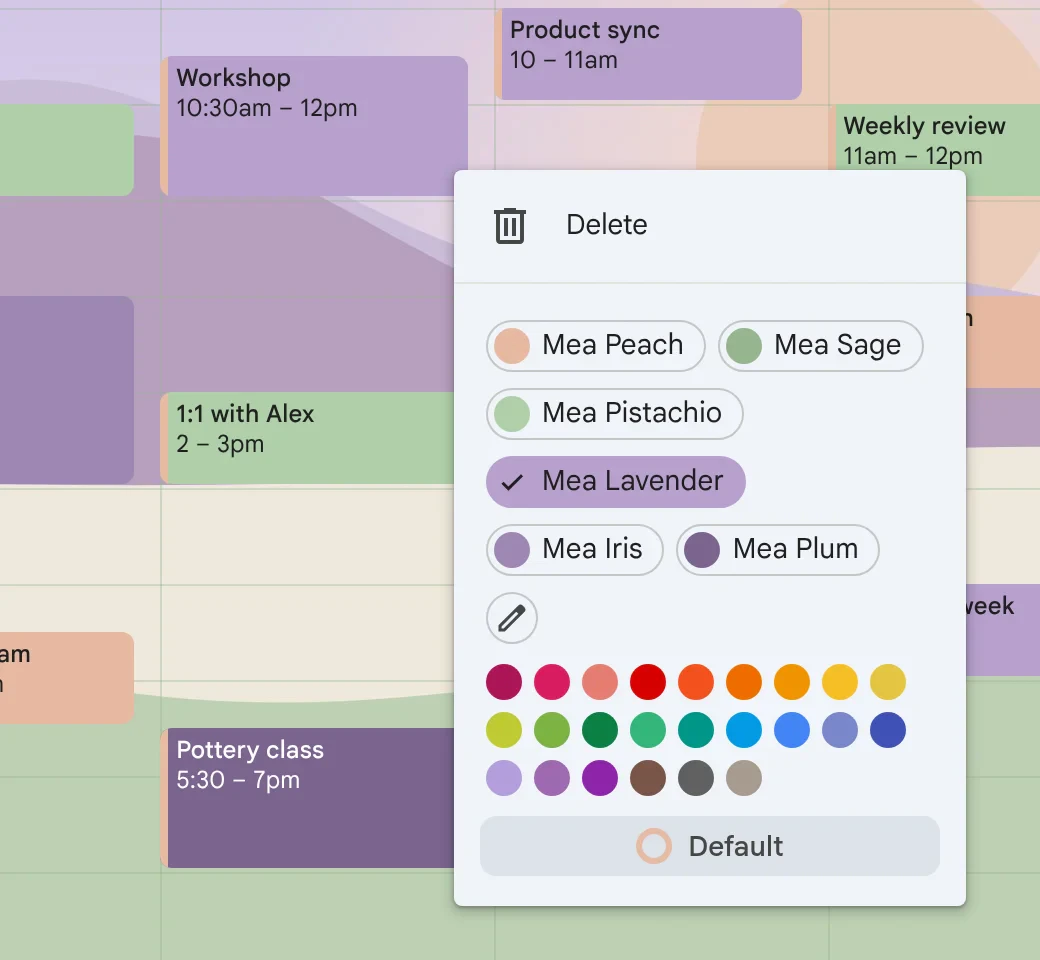
- Right-click an event. Click the pencil after the colors (Edit labels).
- Click Add label (+), type a hex code, and click Select.
- Name it after its job, like “Work”.
- Click Save.
Now right-click any event in that calendar and pick a color. Each calendar has its own labels. Full steps: how to use custom event colors.
5. Match your calendar colors
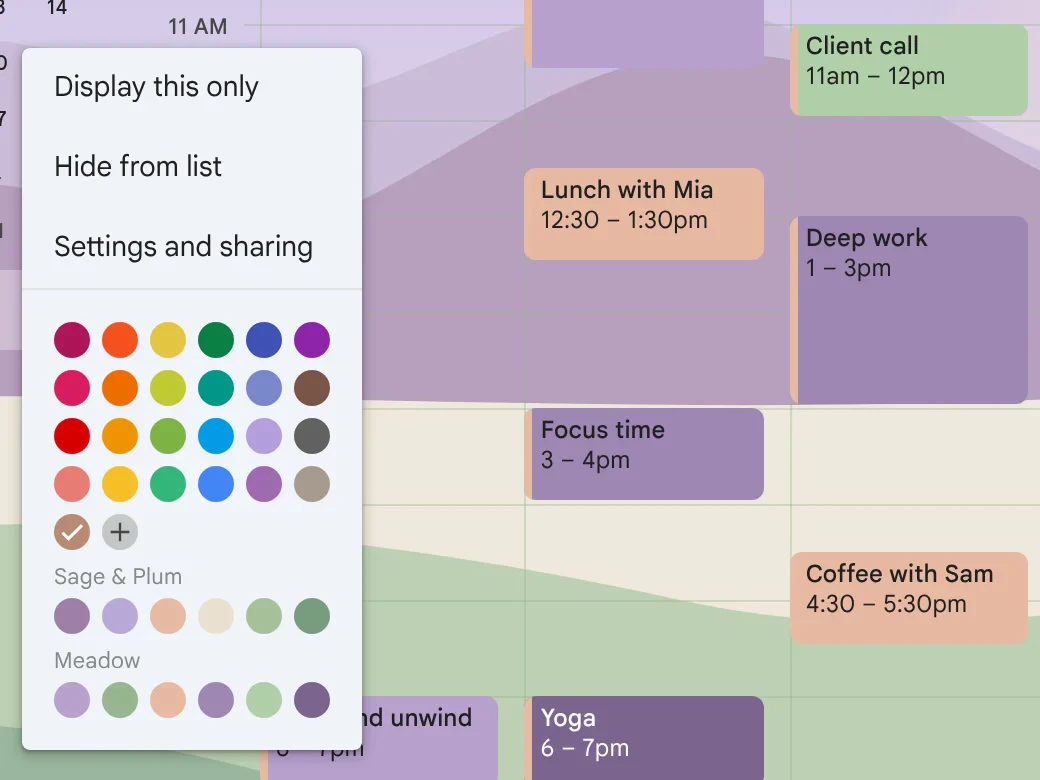
Each calendar in the list on the left has its own color too. Click the ⋮ menu next to a calendar, click Add custom color (+), and type a hex code from the same palette.
With CalHue, your palettes show up in this menu. Pick one in a click. This is free.
6. Add a background picture
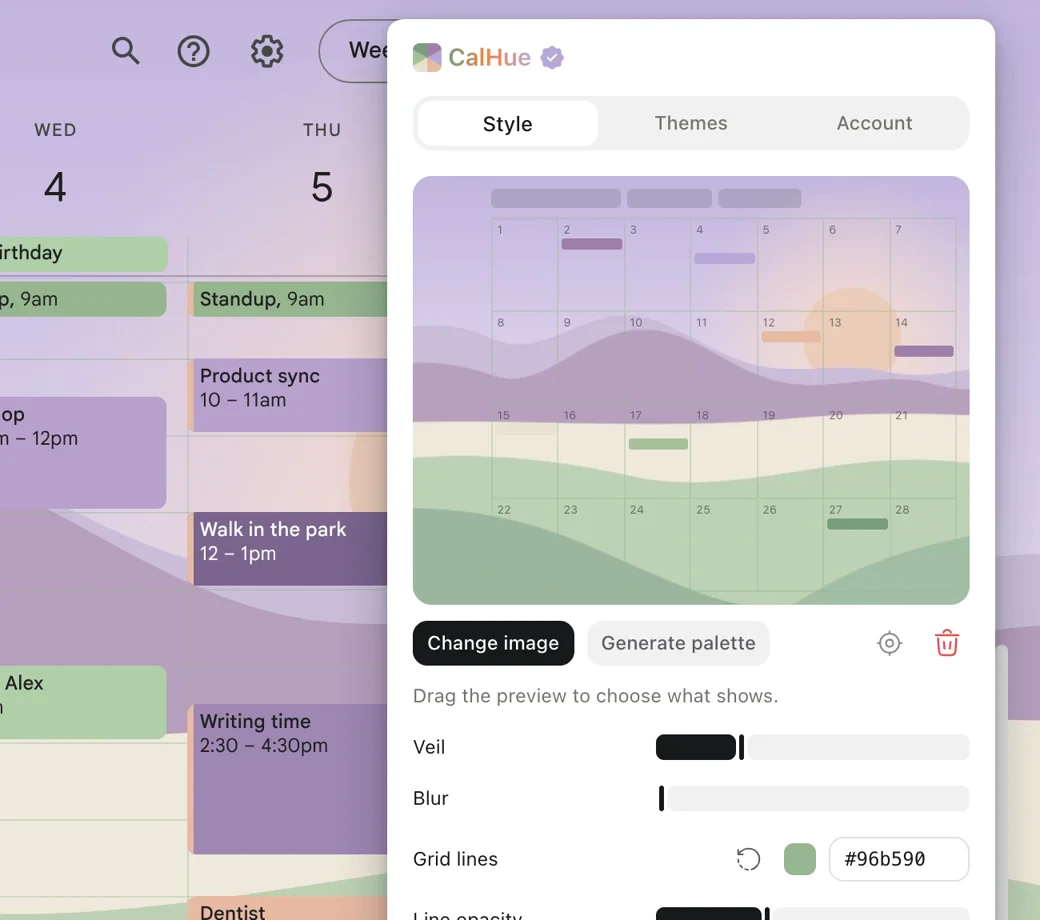
Google Calendar has no setting for a background picture. CalHue adds one, for free.
- Add CalHue to Chrome.
- Click the CalHue icon. On Style, click Choose image.
- Turn up Veil or Blur if events get hard to read.
- Under Grid lines, pick a color from your palette.
Calm, wide pictures work best. More tips: how to change your Google Calendar background.
7. Get colors from your picture
Have a picture, but no colors? In CalHue, click Generate palette. It makes six colors that go with your picture and keep event names easy to read.
- Seeing the colors is free.
- With CalHue Pro (US$9.99, one time), save them and add all six to Google Calendar as labels in one step.
Light or dark?
Both can look good. Google Calendar has a dark mode, and soft colors work in both. See Google Calendar dark mode.
FAQ
Can I make Google Calendar aesthetic without an extension?
Partly. Google Calendar lets you pick any event color and calendar color. It has no background picture.
How many colors should I use?
Four to six is a good start. Add more only when you need them.
Will my colors show on my phone?
Yes. Labels and calendar colors are saved in your Google account. The CalHue background shows only in Chrome on your computer.
Is CalHue free?
Yes. The background, veil, blur, grid lines and six palettes are free. Pro adds saving made colors, adding labels in one step, and themes.
Keep reading
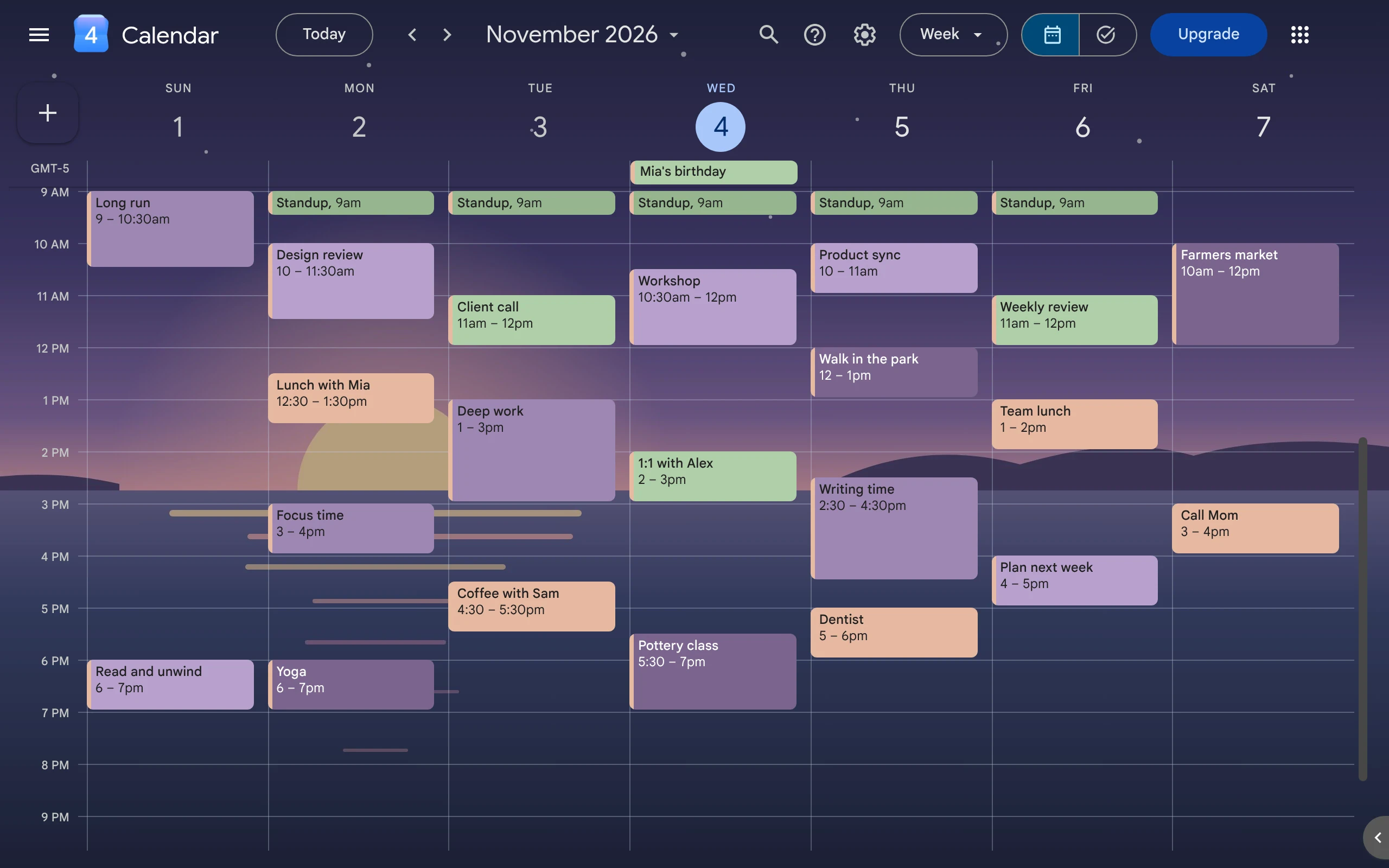
Does Google Calendar Have a Dark Mode?
Yes. Google Calendar on the web has a dark mode. Turn it on in Appearance, then use soft, light event colors so your events stay easy to read.
How to Change Your Google Calendar Background
Google Calendar has no setting for a background picture. This guide shows how to add your own picture with CalHue, a free extension for Chrome.
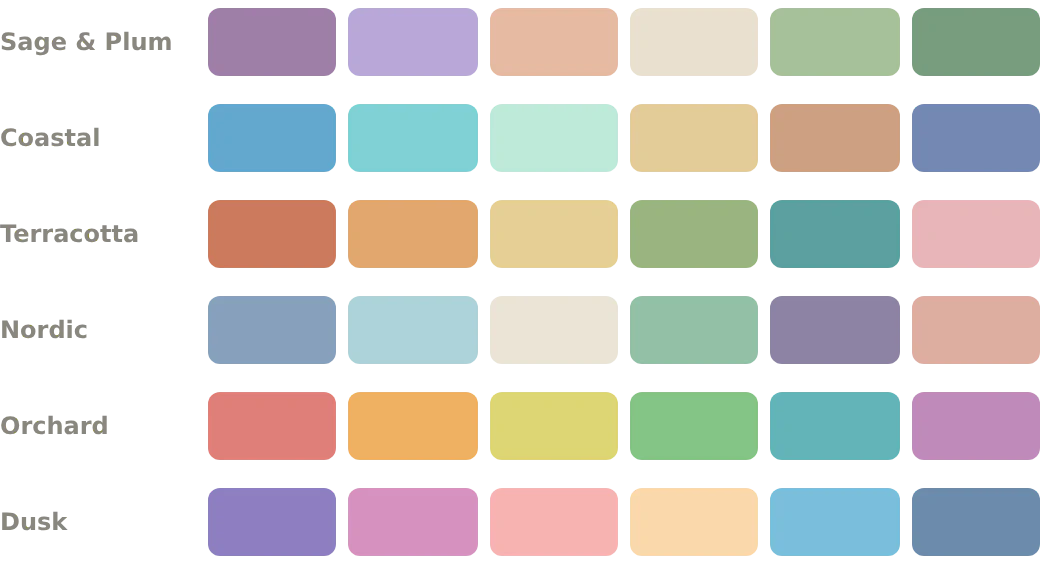
Google Calendar Color Palettes with Hex Codes
Six sets of colors for Google Calendar, with hex codes you can copy. Each color keeps event names easy to read, in light and dark themes.